


 Select your city
 Login
Login
 Select your city Login


 23 Sep 26
 by Shahid Iqbal
 0 Comments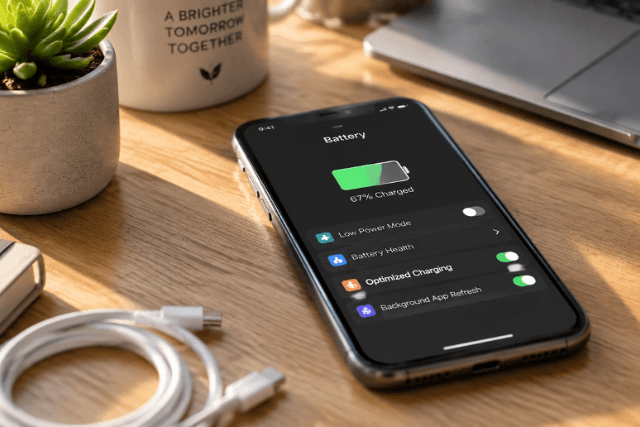
Your new smartphone's battery drops to 40% after just one hour of continuous use. Frustrating, isn't it? You keep asking why your phone battery is draining fast and searching for ways to improve smartphone battery life that work.
Here's what's happening: many factors can contribute to rapid battery depletion. But the good news is that most battery drain problems have simple solutions. Small changes can make a big difference to your battery life. You can adjust your display settings and adopt smarter charging habits.
In this piece, we'll explore practical battery saving techniques that address common battery draining issues. You'll find straightforward methods to stop your battery from draining so fast, whether you're dealing with background apps or connectivity features.
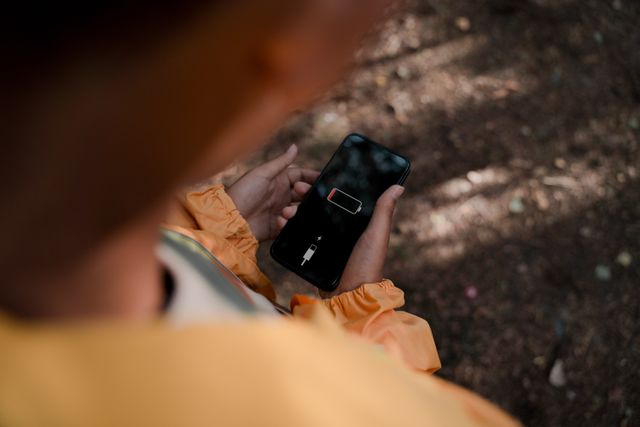
Several factors contribute to the battery drain problem you're experiencing. Understanding these causes helps you identify which areas need attention on your device.
Your smartphone's display accounts for 30–50% of total battery consumption under normal usage conditions. The relationship between screen power consumption and brightness isn't linear. Moving from 50% to 100% brightness often doubles the energy required. Displays use 2–3 times more power at maximum brightness than at 50% brightness.
Users who operate at maximum brightness often experience 30–40% shorter battery life compared to those using moderate brightness levels. The smartphone battery drain from excessive brightness becomes especially noticeable during extended usage sessions like video streaming or gaming. Your screen timeout settings also play a role beyond brightness levels. Screens that remain active while idle contribute to unnecessary power loss.
Apps continue running even after you stop using them. These background processes perform updates, refresh content, track location and send notifications. Social media platforms, email clients and shopping applications stay active after you close them and consume battery without your knowledge. Background apps drain battery power and lead to quicker depletion while also consuming data and slowing down your device.
Wi-Fi and Bluetooth don't substantially drain your battery when idle, contrary to popular belief. Bluetooth that's turned on but not connected draws virtually zero power. It only consumes around 2.5 mW after connecting to a hands-free device. Poor cellular reception creates real battery drain issues, though. Your phone ramps up power use to stay connected when it has weak signal strength and searches for towers in areas like lifts, rural locations or underground spaces.
Your phone uses more battery than needed while running outdated software. New updates often include optimisations that reduce battery consumption. Scheduled jobs wake up too often and raise battery usage after devices run older code. Software updates refine how background services and processors manage themselves when idle.
Heat degrades your battery life over time. Elevated temperatures damage battery health as lithium-ion cells age faster under heat. Multiple open apps force your processor to multitask and generate excess heat. Power-intensive activities like gaming, streaming 4K video or continuous GPS navigation cause components to work at maximum capacity and add to your phone's temperature.

Simple adjustments to your device settings can improve smartphone battery life by a lot. These changes take just minutes to implement but deliver noticeable results throughout your day.
Battery Saver mode limits certain phone functions to extend battery life. Once you activate it, Dark Theme turns on and apps stop running in the background. Location services also get disabled when your screen is off. You can enable this on most Android devices by going to Settings > Battery > Battery Saver. The feature turns off on its own while your phone charges. Extreme Battery Saver pauses most apps and slows processing for extended usage time between charges, maybe even giving you greater power conservation.
Real-life usage patterns show that keeping brightness on automatic or around 40–60% provides the best balance between visibility and battery conservation. Your screen timeout should be reduced to 30 seconds. This ensures your display switches off quickly when idle. Adaptive brightness provides better battery optimisation than manual settings because it adjusts based on ambient lighting conditions on its own.
Modern Bluetooth and Wi-Fi consume minimal power when idle. Bluetooth that's turned on but not connected draws zero power. Even when connected, it only uses around 2.5 mW. Wi-Fi consumes about 30 mW when connected, which is by a lot less than mobile data. Mobile data uses between 50 and 500 mW. Keeping Wi-Fi on can save battery, especially when you have areas with weak cellular coverage.
Android's Adaptive Battery feature uses machine learning to determine which apps you'll use. It restricts resource access for rarely used apps. You can disable background activity by going to Settings > Apps > Select the app > App battery usage > Toggle off Allow background usage. Social media apps like Facebook and Messenger are common culprits for excessive background drain.
GPS can shorten battery life by 13%, rising to 38% in areas with weak signal. Location services operate through GPS hardware, Wi-Fi scanning and tower triangulation. GPS is the most power-hungry. Review your location permissions by going to Settings > Location > App permissions and set apps to "Allow only whilst using the app" rather than "Allowed all the time".
Dark mode provides substantial benefits only on OLED displays. A switch from light mode to dark mode at 100% brightness saves an average of 39–47% battery power. But at typical 30–50% brightness levels, savings drop to just 3–9%. OLED screens display true black by powering down pixels completely. LCD screens maintain a backlight regardless of the colour.
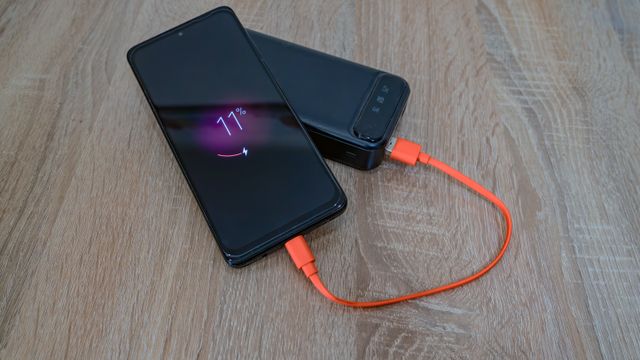
How you charge your device affects its long-term health. Better charging practices can improve smartphone battery life by a lot and prevent premature battery degradation.
Your phone battery will deteriorate 10% to 15% faster over your phone's lifetime if you charge it to 100% all the time compared to charging it to a lower percentage like 90%. The battery stays at high voltage when your phone remains plugged in once it hits full charge, and this causes chemical ageing. Modern smartphones have protections that stop charging once the device reaches 100%. Many even learn your habits and optimise charging by trickle charging. This doesn't mean you should never charge to 100%. A full charge remains acceptable for mission-critical days when you need maximum usage time.
Your phone's capacity to hold a charge suffers when you let the battery drop below 20% on a regular basis. A battery level between 20% and 80% provides optimal performance and longevity. You don't need to let your phone drain completely before charging. Plugging in when you're somewhere between 20 and 80% instead of letting the battery fully drain extends battery lifespan.
Third-party chargers can affect your device's battery life and cause long-term damage. Original chargers match your phone battery and ensure the current and voltage remain acceptable and safe. Non-original chargers charge slowly due to poor compatibility, with unsuitable current and voltage that drain the battery. Cheap, uncertified chargers may not regulate power the right way. They cause overheating and battery damage through inconsistent voltage.
Your phone battery should not get damaged when you use it while charging unless it causes overheating. But the charging process requires power, and usage at the same time draws additional power from the battery. This results in slower charging times. Heat builds up when you do intensive activities like gaming or run resource-intensive apps while charging. These put strain on the hardware and can lead to reduced performance. Your mobile battery faces increased pressure when you play with it while charging. Heat generates fast and battery life shortens.
Battery health depends on consistent habits that go beyond daily settings adjustments. These strategies protect your device's longevity and address the battery drain problem over time.
Manufacturers release software updates that include optimisations to boost smartphone battery life. Updates fix bugs and boost battery efficiency while they provide refined battery-saving mode settings. Check for updates by going to Settings > System > System update and install available versions.
Review which apps consume excessive power by going to Settings > Battery > Battery usage. Apps showing double-digit battery consumption need investigation. Uninstall rarely used apps that drain power or restrict their background activity. Close problematic apps or restart your phone if issues persist after 24 hours.
A weekly phone restart clears memory leaks and closes background apps that drain your battery. This simple action resolves minor glitches that affect battery performance. Hold the power button and select Restart to maintain optimal performance.
Heat damages battery capacity. For every 8°C rise above 25°C, battery lifespan cuts roughly in half. Keep your phone out of direct sunlight and remove protective cases while charging to dissipate heat. Your device performs best between 16-22°C. Cold temperatures reduce performance but cause no damage.
Battery degradation can become severe even with battery-saving strategies. Selling your used phone on CashMartIndia helps you recover value while you upgrade to a device with better battery life.
Understanding why your battery drains quickly and implementing simple adjustments can dramatically extend your smartphone's daily usage time and long-term battery health.
Small, consistent changes to your charging habits and device settings deliver measurable improvements in both daily battery performance and long-term battery health, eliminating the frustration of constant recharging.
You now have practical techniques to stop your battery from draining fast. Adjust your display settings, adopt smarter charging habits and monitor background apps to extend your device's battery life by a lot. Consistency is what maintains healthy battery performance. Implement these changes gradually and observe which strategies work best for your usage patterns. Regular care and attention will help your smartphone battery last longer throughout the day and maintain better health over time.
Several factors contribute to rapid battery drain, including high screen brightness (which accounts for 30-50% of battery consumption), too many apps running in the background, constantly enabled connectivity features like GPS, outdated software, and overheating issues. Poor cellular signal strength also forces your phone to use more power as it constantly searches for network towers.
It's better to keep your battery between 20% and 80% for optimal longevity. Charging to 100% regularly causes the battery to deteriorate roughly 10-15% faster over your phone's lifetime. The stress on lithium-ion batteries is extreme between 80-90% charge levels. However, charging to 100% occasionally for days when you need maximum usage time is perfectly acceptable.
Enable battery saver mode, reduce screen brightness to 40-60%, shorten screen timeout to 30 seconds, and close unused apps. Disable location services when not needed, as GPS can reduce battery life by 13-38%. Switch to dark mode if you have an OLED screen, which can save 39-47% battery at full brightness. Also, turn off background activity for apps you rarely use.
Using your phone whilst charging won't damage the battery unless it causes overheating. However, it does slow down charging times because the device draws power simultaneously. Intensive activities like gaming or streaming whilst charging generate excess heat and put strain on the hardware, which can potentially reduce performance and shorten battery lifespan.
No, you shouldn't routinely close apps from the recent apps menu. Modern devices have efficient RAM management that keeps frequently used apps ready in memory. Constantly closing and reopening apps actually strains the battery more, as the system must reload instructions each time. Only close apps that are consuming excessive battery, which you can identify in your battery usage settings.


50000+ - Devices Picked

0 Comments