


 Select your city
 Login
Login
 Select your city Login


 19 Jun 26
 by Shahid Iqbal
 0 Comments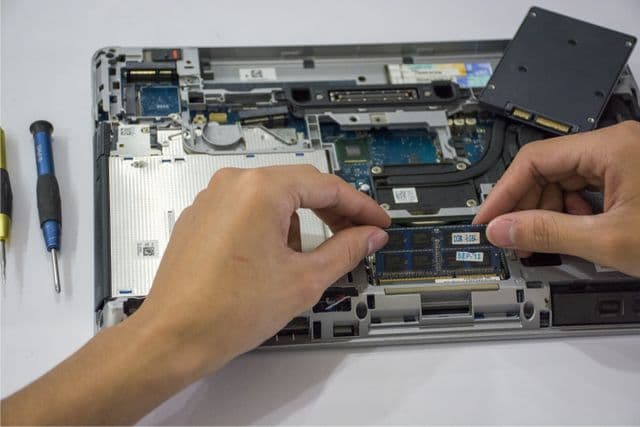
Your laptop refuses to boot, and the panic sets in. Everything from work documents to precious photos feels lost forever. But here's the reassuring news: there's hope at the time you need to recover data from dead laptop. Most cases show that even with a PC that won't boot, the data stored on the hard drive remains intact and recoverable.
Whether you're dealing with a dead laptop hard drive, SSD, or hard disc, this piece will walk you through practical recovery methods step by step. You don't need to be a tech expert to retrieve your files. We'll show you how to recover data from a dead laptop and what tools you'll need. We'll also cover how to prevent future data loss. Let's get your files back.
Before you attempt to recover data from dead laptop, understanding the actual problem saves time and prevents further damage. A laptop that won't power on doesn't always mean your storage drive has failed. The issue might stem from motherboard failure or power supply damage, while your hard drive or SSD remains intact. This difference matters because if the drive itself works fine, recovery becomes straightforward.
Human errors account for 26% of data loss cases, which means taking the wrong approach during recovery can make things worse. When your laptop shows no signs of life, resist the urge to repeatedly press the power button or shake the device. Don't attempt to open it without proper preparation. Never install recovery software on the same drive you're trying to recover from, and avoid system repair tools like CHKDSK. These utilities may overwrite the exact data you need.
Physical handling requires caution. Hard drives contain delicate moving parts that respond poorly to mishandling. Ground yourself before touching any internal components by touching an unpainted metal surface for at least five seconds to discharge static electricity. Work on a non-carpeted surface and avoid synthetic fabrics. Handle drives by their edges only, never touching circuit boards or connectors. Keep components in anti-static packaging until you're ready to use them.
Professional data recovery services are a great way to get your data back when the damage appears severe or you lack confidence in DIY methods.
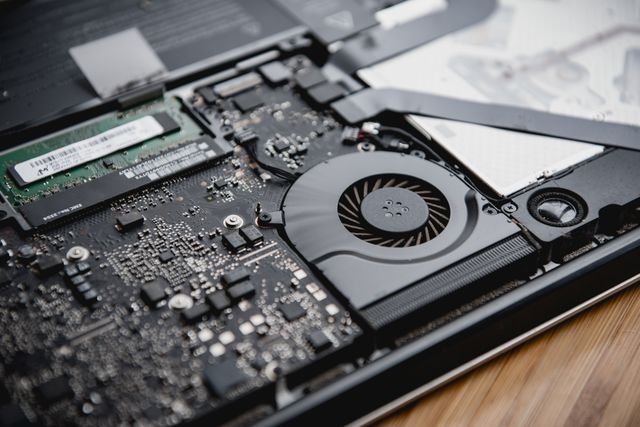
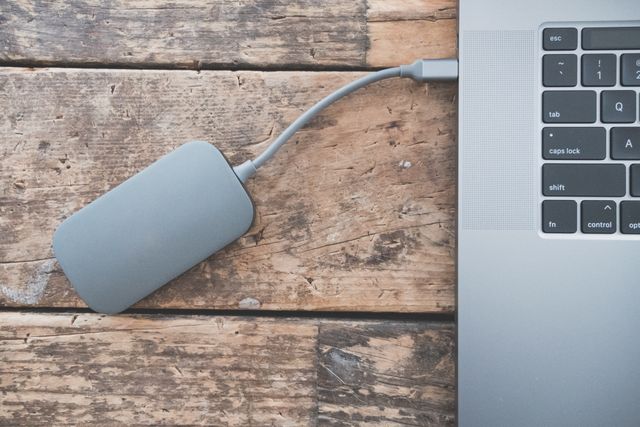
Recovering files from a non-booting laptop requires removing the storage drive and accessing it through a working computer. The quickest way involves extracting your hard drive or SSD from the dead laptop and connecting it as an external device. You'll need a SATA to USB adapter or an external hard drive enclosure that matches your drive's interface. Most modern laptops use 2.5-inch SATA drives.
Older models may have IDE or PATA connections. Remove the drive by following your laptop manufacturer's disassembly guide. Connect it to the adapter and plug it into a functioning computer via USB. The drive should appear as an external storage device and allow you to browse and copy your files.
A bootable USB drive offers another recovery path if the laptop powers on but won't boot into the operating system. Create one using tools like Rufus on a working computer. Boot your dead laptop from this USB. This method works especially when software corruption prevents normal startup but the hard drive remains functional. You can access your internal drive from the live environment and transfer files to external storage.
Professional data recovery services become necessary if DIY methods fail. These specialists handle physical drive damage and clicking sounds or complete detection failures using cleanroom facilities and specialised equipment.
Once you've recovered your files, set up automated backups to prevent future data loss scenarios. Automatic backup software eliminates human error and runs scheduled backups without manual intervention. Configure daily or weekly backups depending on how often your data changes. Mission-critical files need hourly backups. The risks you've just experienced show why the 3-2-1 backup rule provides resilient infrastructure: maintain three copies of your data, store them on two different media types, and keep one copy offsite in the cloud.
Test your backups to make sure they work when disaster strikes. A backup that cannot be restored offers no protection. Restore a few random files monthly to verify integrity and perform a full system restore test quarterly. You'll identify corruption or incomplete backups before an actual emergency occurs then.
Monitor your hard drive's health using SMART (Self-Monitoring, Analysis, and Reporting Technology) software to detect early warning signs of failure. These tools analyse error rates, temperature and reallocated sectors. They provide advance notice before complete drive failure. Encrypt your backup data to protect sensitive information, especially when storing copies in the cloud. Strong encryption combined with two-factor authentication safeguards your recovered files against unauthorised access.
Right now, you have practical methods to recover data from your dead laptop and protect yourself from future disasters. The process might seem daunting at first, but it's manageable with the right approach and tools. Start implementing automatic backups after recovering your files. This matters most. Regular backups and drive health monitoring will ensure you won't face this stressful situation again. Your data is recoverable, and with these prevention strategies in place, it'll stay safe for years to come.
Yes, you can recover files from a laptop that won't turn on. In most cases, even when your laptop refuses to boot, the data on your hard drive or SSD remains intact. The issue is often with the motherboard, power supply, or battery rather than the storage drive itself. You can remove the drive and connect it to another computer using a SATA to USB adapter or external enclosure to access your files.
To access data from a dead laptop, you need to remove the hard drive or SSD from the device. Power off the laptop completely, locate and remove the storage drive (typically found under a bottom panel), and connect it to another computer using a SATA to USB adapter or external enclosure. Once connected, the drive should appear as an external storage device, allowing you to browse and copy your files normally.
If your laptop shows no signs of life, first check the power supply and battery connections. Perform a hard reset by disconnecting all power sources and holding the power button for 15-30 seconds. Remove any external devices that might be causing conflicts. If these steps don't work, the issue may be hardware-related, but your data is likely still safe on the internal drive and can be recovered by removing it and connecting it to another computer.
Data recovery from a failed hard drive depends on the type and extent of damage. If the drive is physically intact but the laptop won't boot, you can often recover data by connecting it externally to another computer. However, if the drive itself has failed (making clicking sounds or not being detected at all), you'll need professional data recovery services. These specialists use cleanroom facilities and specialised equipment, though the service can be costly and success isn't guaranteed.
Yes, you can remove the SSD from your old laptop and connect it to a new computer to access your files. For standard 2.5-inch SATA SSDs, use an external enclosure or SATA to USB adapter. For M.2 or mSATA drives, you'll need a compatible adapter that converts the connection to USB or SATA. Once connected, the drive will function like an external storage device, allowing you to browse and transfer your files. Note that if the drive was encrypted with BitLocker, you'll need the recovery key to unlock it.
You may Also Like:


50000+ - Devices Picked


0 Comments