


 Select your city
 Login
Login
 Select your city Login


 31 Jul 26
 by Shahid Iqbal
 0 Comments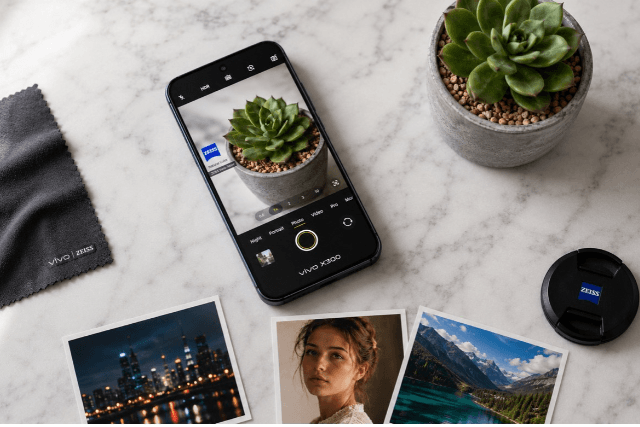
With a 200MP main camera lens, the Vivo X300 outshines every other camera flagship phone. Yet, most users never venture beyond the default 12.5MP pixel-binned shots and miss out on their device's potential.
The Vivo X300 camera combines ZEISS photography technology with a 200MP main sensor and a 50MP periscope telephoto. But accessing professional results requires understanding which vivo camera settings to adjust and when to use them.
This piece will walk you through the best vivo x300 camera settings, from optimizing your vivo x300 camera sensor for different scenarios to video modes. You'll know exactly how to configure your vivo x300 camera details for stunning photos every time and avoid common mistakes.
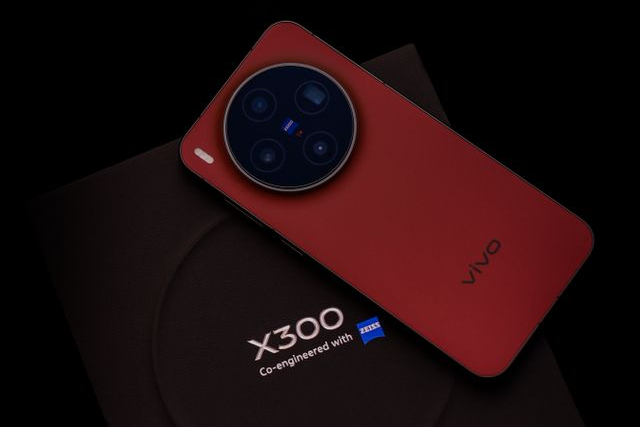
The vivo x300 camera sensor operates in 12.5MP mode by default. This isn't a limitation but a result of pixel binning technology. The process combines data from 16 individual sensor pixels into one and produces brighter images with better dynamic range. The default setting works better for everyday photography. Each combined pixel captures more light, which results in richer colours and better low-light performance.
The 200MP mode serves specific purposes rather than general photography. You need it when capturing documents with fine text or creating large prints. It also helps when photographing architecture where distant details matter or when you plan to crop by a lot while maintaining image quality. The 12.5MP output delivers better results with smaller file sizes and faster processing times for social media, portraits, or standard viewing on screens.
The vivo x300 camera details reveal a triple-lens system co-engineered with ZEISS. The main camera features a 200MP Samsung ISOCELL HPB sensor measuring 1/1.4 inches with an f/1.57 aperture and optical image stabilization rated at CIPA 4.5. This sensor size allows better light capture and improved in-sensor crop results compared to previous models.
The telephoto camera uses a 50MP Sony IMX 602 sensor (1/1.95 inches) behind a 70mm f/2.57 lens and provides 3x optical zoom with multi-directional phase-detection autofocus and OIS. The ultrawide camera incorporates a 50MP Samsung ISOCELL JN1 sensor (1/2.76 inches) with an f/2.0 aperture and 119.4-degree field of view. The front-facing camera matches the ultrawide sensor specifications at 50MP with autofocus capability, a major upgrade over previous generations.
ZEISS collaboration extends beyond lens coatings to include complete imaging algorithms. The telephoto lens meets the rigorous ZEISS APO certification standard, which controls chromatic aberration for sharper and more accurate colours. The ZEISS Natural Portrait mode balances realistic rendering with boost and delivers natural-looking skin tones without excessive smoothing.
Multi-Focal HD Portrait utilizes five focal lengths ranging from 23mm to 100mm and simulates traditional camera perspectives. The VCS technology integrated into the telephoto system improves noise sensitivity in low light by 11.9%. ZEISS T* coatings reduce lens flare and maintain colour accuracy when shooting toward light sources. They keep highlights under control without washing out the frame.
Night Mode transforms how your vivo x300 camera captures low-light scenes. A single quick shot results in dark and grainy images. This mode captures several shorter exposures over 1 to 3 seconds instead. The AI then combines these frames into one photo that appears brighter and sharper with substantially less noise than standard mode would produce. The system compensates for small hand movements during capture and eliminates the need for a tripod in most situations. Use Night Mode to shoot indoor dining, street photography after sunset, concerts, or any environment where auto mode delivers dark results.
AI Scene Optimization analyzes your scene before capture. It adjusts colour, contrast, and exposure on its own. The vivo x300 camera settings for best quality keep these adjustments subtle and natural rather than oversaturated. ZEISS colour science maintains true-to-life rendering. Keep this setting enabled for photos straight from the camera. Turn it off only when you plan extensive editing in Lightroom or Snapseed. A neutral base provides more flexibility for post-processing.
The 200MP mode serves specific purposes rather than everyday photography. Use it to capture documents where you need to zoom into fine text later, landscape photography planned for large prints, architecture where distant details matter, or situations requiring significant cropping while maintaining quality. One 200MP photo can exceed 50MB. Skip this mode for casual photos, social media, portraits, or indoor shots where the default 12.5MP works better.
The 50mm focal length delivers natural-looking portraits with minimal distortion and smooth background blur. The 85mm setting compresses facial features and creates a flattering effect that many find appealing when shooting professional-style shots. This focal length produces stronger background separation as with magazine portraits. Never use the ultrawide lens for portraits. It stretches faces and creates unflattering distortion.
Pro Mode grants direct control over ISO, shutter speed, white balance, and focus. Set ISO to 100 or 200 in daylight for cleaner images with less noise. Use ISO 800 to 1600 with slower shutter speeds for low-light creative shots, though you'll need stable support. Capture light trails, stars, or fireworks with shutter speeds between 1 to 10 seconds.
Video recording on the vivo x300 camera settings works best at 4K resolution with 60fps enabled. The device supports 8K capture, but this format creates massive files that need powerful computers to edit. Most platforms cannot display 8K content. The 4K 60fps setting captures twice as many frames per second compared to 30fps and makes motion appear smoother by a lot when you move while filming. Stationary subjects on a tripod work well with 4K 30fps, which saves storage space without sacrificing quality.
The vivo x300 camera also records 4K at 120fps at focal lengths of all types with 10-bit log and Dolby Vision support. This capability preserves greater colour depth to do post-production work. ACES integration arranges professional cinema cameras in a way that connects them continuously. Portrait videos benefit from 4K 60fps powered by the V3+ Chip, which applies beauty and bokeh effects without quality loss.
Multi-focal optical image stabilization keeps shots locked from ultra-wide to super-telephoto. The vivo x300 camera combines hardware OIS with electronic EIS stabilization. EIS uses a wider view and smooths footage digitally. Walking shots appear professional rather than shaky. You should enable the highest stabilization level in video settings to record handheld. Accept the slight frame crop as a worthwhile trade-off.
Micro Movie Mode streamlines content creation for Instagram Reels and YouTube Shorts with AI-powered framing suggestions and automatic vertical formatting. This mode provides cinematic effects and transitions with angle recommendations. You get polished results without needing editing skills.
Colour profile selection determines how your vivo x300 camera settings for best quality process the final image. ZEISS Natural and Textured profiles deliver better highlight control, balanced colours, and less aggressive sharpening compared to Vivid mode. Choose Vivid for stronger colours and open the Effects panel right away. Reduce sharpness to around minus fifty, then lower contrast a bit to avoid harsh textures and oversharpened skin.
RAW Lighting reduces HDR, sharpening, and AI processing. Enable this feature only in good light and at native focal lengths such as 1X, 2X, 3X, or 6X. Avoid RAW Lighting in low light, indoors, or at high zoom levels where default processing produces better detail and exposure.
Tapping zoom buttons cycles through different focal lengths rather than using pinch gestures. Tapping 1X switches between 24mm and 35mm, tapping 2X cycles through 50mm perspectives, and tapping 3X accesses 70mm, 85mm, and higher telephoto framings. This method delivers more consistent results because the vivo x300 camera switches to tuned focal length pipelines instead of continuous digital zoom.
Switch to the 3X telephoto and move closer instead of enabling Macro mode for close-up shots. This approach produces better depth, compression, and texture compared to macro mode, which tends to create overexposed images.
The 200MP mode wastes storage and processing power when you use it for everything. The default 12.5MP pixel-binned output works better for casual photography, low light, and social media uploads. Skip Night Mode after dark and you'll get dark, noisy images. The 8K video mode creates enormous files that most devices cannot display and most editing setups cannot handle smoothly.
One 200MP photo can exceed 50MB in file size. Reserve this mode for documents, architecture, or situations that require heavy cropping while maintaining quality. The 12.5MP default saves storage space without sacrificing visual quality for everyday shots.
Master your Vivo X300's powerful camera system by understanding when and how to use its advanced features for professional-quality mobile photography.
The Vivo X300's ZEISS-engineered triple camera system combines a 200MP main sensor, 50MP telephoto, and advanced AI capabilities. Success comes from matching settings to scenarios rather than maximizing every specification.
Your Vivo X300 holds professional-grade camera capabilities that most users never explore. You can revolutionize your mobile photography results once you understand the difference between 12.5MP and 200MP mode and select the right focal lengths to capture portraits.
Note that the key isn't using every feature but choosing the right settings to match each scenario. Experiment with Pro Mode and avoid common mistakes like overusing 200MP. Your photos will improve significantly. Start applying these vivo x300 best camera settings today and watch your photography reach new heights.
The Vivo X300 features a 200MP main camera lens that outshines most camera flagship phones. It combines ZEISS photography technology with a 200MP main sensor, 50MP periscope telephoto, and advanced AI capabilities, making it one of the most capable camera systems available in smartphones.
To maximize photo quality, use the default 12.5MP mode for everyday shots as it produces brighter images with better dynamic range. Enable Night Mode for low-light situations, keep AI Scene Optimization on for natural-looking results, select appropriate focal lengths (50mm or 85mm) for portraits, and reserve the 200MP mode only for situations requiring extreme detail or significant cropping.
The camera system combines ultra-high resolution sensors (200MP main camera), optical image stabilization on both main and telephoto lenses, multi-directional phase-detection autofocus, multiple focal lengths ranging from 23mm to 100mm, and powerful AI-based image processing. The ZEISS collaboration adds professional-grade lens coatings and colour science for accurate, natural-looking results.
For optimal video quality, use 4K resolution at 60fps rather than 8K, which creates unnecessarily large files. Enable the highest stabilization level for handheld recording to eliminate shakiness. The device also supports 4K at 120fps with 10-bit log and Dolby Vision for professional-grade content creation.
Avoid using 200MP mode for everyday photography as it wastes storage and processing power. Don't skip Night Mode in low-light conditions, as it significantly improves image quality. Refrain from shooting in 8K video unless absolutely necessary, and use the telephoto lens for close-ups instead of Macro mode for better depth and texture.


50000+ - Devices Picked

0 Comments