


 Select your city
 Login
Login
 Select your city Login

 27 Mar 26
 by Shahid Iqbal
 0 Comments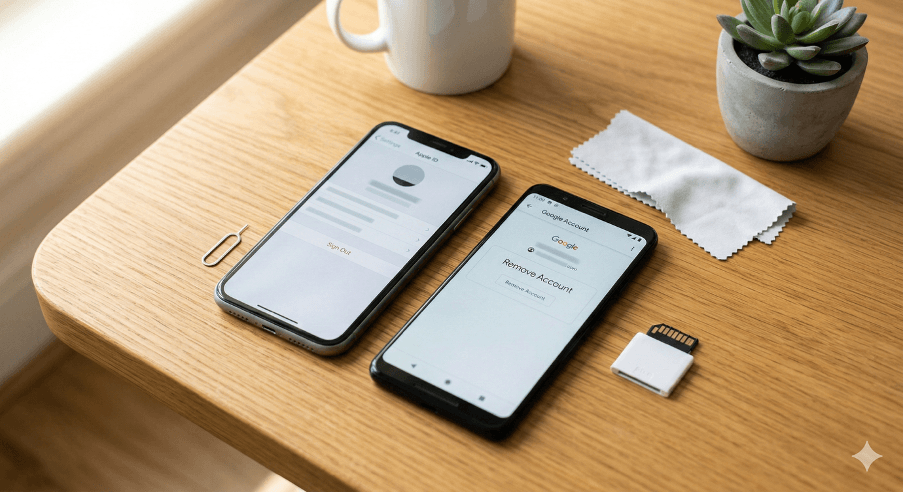
You need to remove your Google account or iCloud before selling your phone. This matters more than most people realise. Many assume a factory reset erases everything, but it doesn't disconnect your device from online accounts. This oversight can create real problems. Failing to remove your accounts and you expose sensitive information to strangers.
Privacy breaches or identity theft could follow. On top of that, the new owner may hit activation lock screens that ask for your login credentials. This frustrates buyers and hurts your device's resale value. This piece walks you through everything you need to know: how to delete all data from your phone securely, how to erase all data from your phone permanently, and how to delete data from your Android phone permanently before selling.
Your mobile phone stores a rich source of personal data that could be exploited if it falls into the wrong hands. Photos, videos, saved passwords, financial information, and private messages remain available even when you think they've been deleted. Many apps retain your login information even after a factory reset. Social media accounts like Facebook, Instagram, and WhatsApp can remain logged in. Banking apps such as PayPal and Google Pay also stay active and grant the new owner unauthorised access to these accounts.
Personal identity information, including contacts, saved emails, and personal details, can make you a target for identity theft. Data breaches compromise 3.5 million accounts on average each day. The more places your information resides, the higher your exposure to these risks. Password reuse compounds the problem. Hackers with one password can gain access to several accounts.
Activation Lock ranks as the biggest deal-breaker when you want to resell. Buyers cannot set up your device if these locks remain active. You won't get paid until they're disabled. When Activation Lock protects an iPhone, buyers see an 'iPhone Locked to Owner' screen. Only the previous owner can unlock it by providing account credentials or removing the device from their account. Private buyers looking for personal use may refuse to pay the market price for a locked device.
Proper device preparation sends trust signals that translate into better offers and faster payouts. Buyers want a smooth setup without locks or mysteries. Stating that Find My is off and Activation Lock is disabled with a note like 'Phone boots to Hello screen' addresses the biggest check buyers make.
You need to back up your data first before you proceed with removing your Google account or iCloud before selling your device. People who skip this step lose contacts, messages, or irreplaceable photos.
Open the Settings app on your device and tap Google, then select backup. Follow the on-screen instructions to turn on backup if this is your first time. Tap on backup now to create a fresh copy of everything. This method backs up your app data, call history, contacts, SMS and MMS messages, device settings, and photos to Google Drive.
Your Google account provides 15GB of storage for free. This space must be shared across Google Drive, Google Docs, Gmail, and other Google services. Manufacturers like Samsung, OnePlus, and Xiaomi offer their own cloud backup services in addition to Google Drive. Connect your phone through a USB cable to a PC or Mac and transfer larger files, such as 4K videos, using software like Samsung Smart Switch.
Connect your iPhone to Wi-Fi, then open Settings and tap your name. Select iCloud, then tap iCloud Backup. Turn on Back Up This iPhone if you haven't done so. Tap Back Up Now and wait until the backup completes. iCloud backs up your iPhone daily when the device is connected to power, locked, and connected to Wi-Fi.
Connect your iPhone to your Mac or Windows PC to create a computer backup. Open Finder on Mac or iTunes on Windows, select your device, then select Back Up Now. Select Encrypt local backup to protect sensitive information like health data and login credentials.
Certain apps like WhatsApp require manual backup and don't sync with iCloud or Google Drive. Go into the app settings and start the backup, making sure it connects to your cloud storage. Save or print recovery codes for any accounts using two-factor authentication before you reset. Authenticator apps won't restore with regular backups.
Removing your Google account from Android requires understanding that this action deletes everything associated with that account from your device, including email, contacts, and settings. You have two main ways to accomplish this task.
Open your phone's Settings app and locate the Accounts section. Your Android version determines how this appears—it might show as "Accounts," "Users & accounts," or "Passwords, passkeys & accounts." Tap on Google to see all connected accounts. Select the account you want to remove, then tap "Remove account" or "Remove from device." A confirmation prompt will appear and warn you about what it all means. Confirm your choice to complete the removal. You can also open the Gmail app, tap your profile picture in the top right corner, select "Manage accounts on this device," choose your account, and tap "Remove account" at the bottom.
Factory Reset Protection becomes active when a Google account remains signed in during a factory reset. Reset your device without removing your Google account first, and the phone will ask for those credentials when it reboots, even if the device is unlocked. This security feature prevents unauthorised access, but it creates problems for new owners who cannot bypass this verification screen.
After removing your account, restart your device to confirm the account no longer appears in Settings under Accounts.
Apple ID removal is different across iOS versions. Open the Settings app and tap your name at the top. Scroll down and tap Sign Out. Enter your Apple ID password at the time you're asked. This security requirement turns off Find My iPod (or Find My iPhone) and prevents unauthorised sign-outs. Return to Settings once you've signed out and tap Sign in to enter a new Apple ID.
The process varies for iOS 10.2 or earlier. Open Settings, tap iCloud, then tap Sign Out twice. Select Delete from My iPhone and enter your Apple ID password.
Go to Settings, tap your name, then select Find My. Tap Find My iPhone and toggle it off. Enter your Apple Account password to confirm. You may encounter a Security Delay message that requires you to wait up to 1 hour before trying again.
Older iPod Touch devices may display a Delete Account button instead of Sign Out. The removal process remains the same across iPads and iPod Touch devices.
Launch the Find My app on another iOS device or go to iCloud.com. Click Find My, select All Devices, then tap the device you want to remove. Select Remove from Account to untie the device from your Apple ID. Activation Lock is removed immediately, and your device is removed from Find My.
Buyers see an iPhone Locked to Owner screen for devices with iOS 15 or later protected by Activation Lock. Check iCloud.com/find to verify your device no longer appears in the list.
Factory reset erases all remaining data from your device. Open Settings and go to System. Select Reset Options and tap Erase All Data (Factory Reset). Confirm your selection and enter your PIN or password. The process can take up to an hour, so charge your phone to at least 70% beforehand.
Open Settings on your iPhone and tap General. Select Transfer or Reset iPhone and tap Erase All Content and Settings. Enter your passcode and Apple Account password when prompted. The screen will go dark during the erasure process, which takes a few minutes to complete.
Many manufacturers now use eSIM technology embedded in devices, but older phones rely on physical SIM cards. Remove your SIM card using the ejection tool or a paper clip. Remove and format your microSD card before reusing it if your phone contains one.
Galaxy users must remove their Samsung account. Go to Settings and tap Accounts and backup, then Manage accounts. Select your Samsung account and tap Remove account twice. Tap Sign out and re-enter your password to confirm.
Cleaning your phone increases resale appeal. Use a microfiber cloth with mild soap and water or rubbing alcohol to clean the screen and body. Cotton swabs work well for ports and speakers. Avoid paper towels or disinfectant wipes, which can damage your device.
Before selling your phone, proper account removal is essential to protect your privacy and ensure maximum resale value. Here are the critical steps every seller must follow:
Following these steps protects your personal information from identity theft while ensuring buyers can immediately set up and use their new device without encountering locked screens or activation barriers.
You now have everything you need to safely prepare your phone for resale without compromising your privacy. These steps protect your personal data and ensure the new owner enjoys a smooth setup experience. Note that removing your accounts before factory reset is the key to avoiding activation lock headaches and maximising your device's resale value. Take your time with each step and double-check your backups. You'll complete the process with confidence.
If you skip removing your accounts, the new owner may face activation lock screens requiring your login credentials. Additionally, your personal data, including photos, passwords, banking apps, and social media accounts, could remain accessible, putting you at risk for identity theft and privacy breaches.
No, a factory reset alone is not sufficient. You must sign out of your Google account (Android) or Apple ID (iPhone) before performing a factory reset. Otherwise, Factory Reset Protection or Activation Lock will prevent the new owner from setting up the device, and some of your data may still be recoverable.
For Android, go to Settings > Google > Backup and tap "Backup Now" to save data to Google Drive. For iPhone, connect to Wi-Fi, open Settings, tap your name, select iCloud > iCloud Backup, and tap "Back Up Now." Don't forget to manually backup apps like WhatsApp that don't sync automatically.
After removing your accounts, restart your device and check Settings under Accounts to confirm no accounts appear. For iPhone users, visit iCloud.com/find to verify your device no longer shows in the list. The phone should boot to the initial setup screen after a factory reset.
Yes, positively. Properly removing accounts and disabling Find My iPhone or Factory Reset Protection increases buyer confidence and resale value. Buyers are willing to pay more for devices that boot to the setup screen without activation locks, as this indicates a smooth, hassle-free setup experience.


50000+ - Devices Picked

0 Comments