


 Select your city
 Login
Login
 Select your city Login


 29 Sep 26
 by Shahid Iqbal
 0 Comments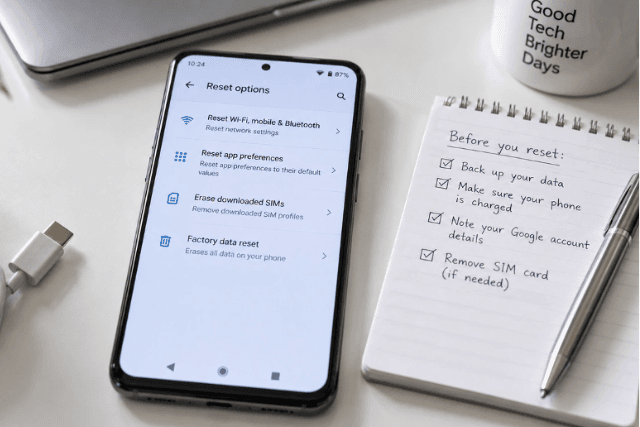
Is your Android phone running slower than usual, or are you preparing to sell it? Learning how to factory reset an Android phone might be exactly what you need.
Resetting a device means restoring it to its factory settings. Your Android device loses all accounts and installed apps at the time you reset it. This process is often the best solution to resolve persistent software problems, prepare a device to sell, or start fresh with a clean installation.
You may need to reset your phone due to technical issues or want a fresh start. This piece will walk you through what you need to know about how to factory reset your Android phone.
Before you factory reset your Android phone, several preparation steps will protect your data and ensure a smooth process. First, back up all your important information to your Google Account. This has your apps, contacts, photos and device settings. You can access this through your phone's Settings by navigating to the backup section and enabling automatic backup.
Make sure you know your Google Account username and password. You'll need these credentials to set up your device after the reset. Wait 24 hours before performing the factory reset if you changed your Google Account password recently. This avoids verification issues.
Charge your phone to at least 70% before starting. The factory reset process can take up to an hour. Your device needs sufficient power to complete it. Connect your phone to Wi-Fi or your mobile network, as you'll need this connection to sign back into your Google Account after the reset finishes.
Remove your SIM card and SD card before proceeding. While the reset won't affect these cards, removing them prevents data loss and protects your privacy, especially if you're selling or giving away the device.
Once your preparation is complete, you can factory reset your Android phone through several methods. The Settings app provides the easiest approach for most devices. Pixel phones require you to go to Settings, select System, then Advanced, followed by Reset options, and tap Erase all data (factory reset). Samsung devices follow a different path: open Settings, tap General management, select Reset, then Factory data reset, and confirm by tapping Reset, followed by Delete all. You may need to enter your lock screen credentials before the reset begins.
Devices that won't boot or are locked can use recovery mode as an alternative. Turn off your phone, then press and hold the volume down button and power button together for 10 to 15 seconds. Use the volume buttons to go to Wipe data/factory reset or Factory Reset in the recovery menu, then press the power button to confirm. Select Yes to proceed. Once complete, choose Reboot system now.
Remote reset becomes work to be done when your device is lost or unavailable. Visit android.com/find and sign into your Google Account. Select your device from the list and click Erase device to delete all data. Your phone must be powered on, connected to Wi-Fi or mobile data, and have Find My Device enabled for this method to work.
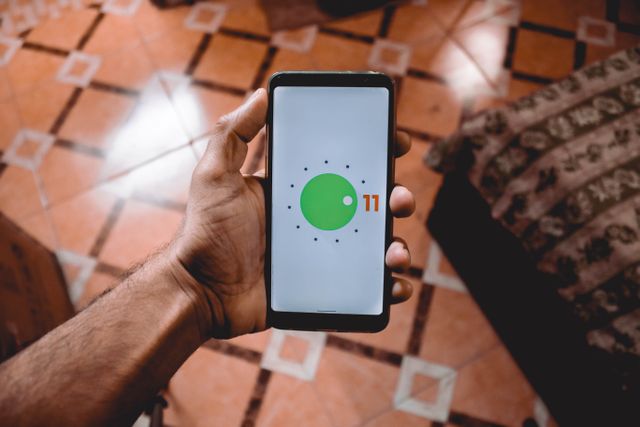
During any reset method, your phone processes the deletion and restarts to the original setup screen.

After your phone completes the factory reset and restarts, the original setup screen will guide you through the restoration process. You need to stay connected to Wi-Fi throughout this process. A stable connection is necessary to download your backed-up data. You'll reach a screen that asks you to sign in to your Google Account during setup. The same Google Account credentials that were used on the device before the reset should be entered. This step verifies your ownership through Factory Reset Protection, a security measure that prevents unauthorised access.
Your phone searches Google Drive for available backups linked to that account after you sign in. The most recent backup from the list presented should be selected. You can then choose which categories of data to restore: apps, call history, device settings and contacts. The Restore button begins the process.
The restoration can take up to 24 hours to complete fully, based on your backup's size. Your phone remains usable while data downloads in the background. Photos and videos backed up to Google Photos become available immediately when you open the app. Open the Google Play Store and tap your profile icon to reinstall apps that weren't automatically added. Select Manage apps & device, then Manage. Change the filter from Installed to Not installed. This shows previously downloaded apps that you can select and reinstall.
Factory resetting your Android phone wipes all data and restores it to original settings, making it essential for troubleshooting, selling, or starting fresh.
The entire process requires careful preparation, but following these steps ensures you won't lose important data whilst achieving a clean, fresh device.
Right now, you have all the knowledge needed to factory reset your Android phone safely. You're prepared to handle the process from start to finish. Back up your data, choose the right reset method and restore everything afterward.
Taking those preparation steps beforehand saves you from headaches later. You can confidently reset your phone whether you're troubleshooting issues, selling your device or wanting a fresh start. Your important data remains protected and recoverable.
Yes, you can perform a factory reset using hardware buttons through recovery mode. Turn off your phone completely, then press and hold the volume down button and power button simultaneously for 10 to 15 seconds. Use the volume buttons to navigate to "Wipe data/factory reset" in the recovery menu, then press the power button to confirm. Select "Yes" to proceed, and once complete, choose "Reboot system now".
You can hard reset a phone without the password using the hardware button method through recovery mode. However, be aware that if you don't know the Google Account credentials associated with the device, it will become FRP (Factory Reset Protection) locked after the reset. To avoid FRP lock, it's better to reset through the Settings menu if you have access to the device.
Yes, a factory reset completely removes all data from your Android phone. This includes all accounts, installed apps, call history, contacts, messages, photos, and device settings. The phone returns to its original factory state, as if it were brand new. This is why it's crucial to back up all important data to your Google Account before performing a reset.
Factory Reset Protection (FRP) is a security feature that prevents unauthorised access to your device after a factory reset. If you reset your phone without removing the Google Account first, you'll need to enter the same Google Account credentials during setup to verify ownership. Without these credentials, the phone will remain locked and unusable.
The factory reset process can take up to an hour, which is why your device needs at least 70% battery charge before you start. After the reset, restoring your backed-up data can take up to 24 hours depending on the size of your backup, though your phone remains usable whilst data downloads in the background.


50000+ - Devices Picked

0 Comments