


 Select your city
 Login
Login
 Select your city Login

 27 Jun 26
 by Shahid Iqbal
 0 Comments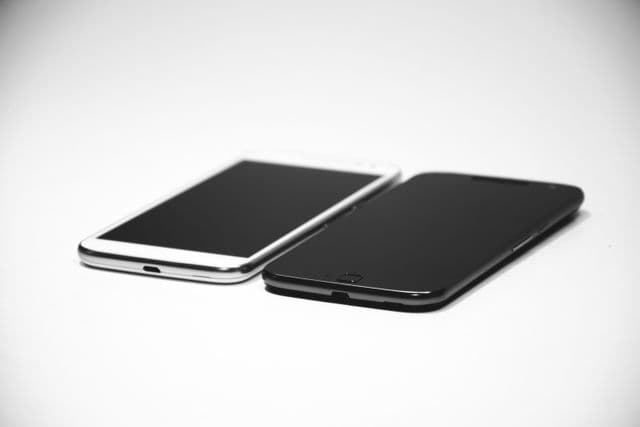
Getting a new Android phone is exciting, but worried about how to transfer data from Android to Android without losing your photos, contacts, or messages?
Here's the good news: Google backs up contacts, call logs, texts, and settings (including Do Not Disturb details) to Google Drive automatically. This backup data doesn't count towards your 15GB free Google Drive storage quota. Android has become so user-friendly that it even logs into your Google account and transfers all your saved Wi-Fi passwords.
This piece will walk you through everything you need to know about data transfer and how to set up your device from old phone to new one easily. Nothing gets left behind.
Before you begin the data transfer process, charge both devices to avoid interruptions. You'll need to unlock your old device using your PIN, pattern, or password. Verify that you're signed into your Google Account on the old phone, as this account will store all your backup data.
The backup process uses Google's built-in cloud service. Go to Settings, then select Back up or copy data. On Samsung phones, you'll find this under Settings, Accounts and backup, whilst other Android phones may have it under Settings, Security and Privacy, System and updates, Backup. Turn backup on and tick the options you want, including Photos & videos and Other device data, then tap Confirm.
Tap the Back up now button. Backups can take several hours to complete, especially when this is your first backup. Leave your phone plugged into a charger and connected to Wi-Fi overnight for best results. You can verify your backup in the Google One app by tapping the Backup section.
Point often overlooked: ensure you have a stable Wi-Fi connection throughout this process. Your backup data remains available as long as you use your device, but will be deleted if the device isn't used for 57 days.
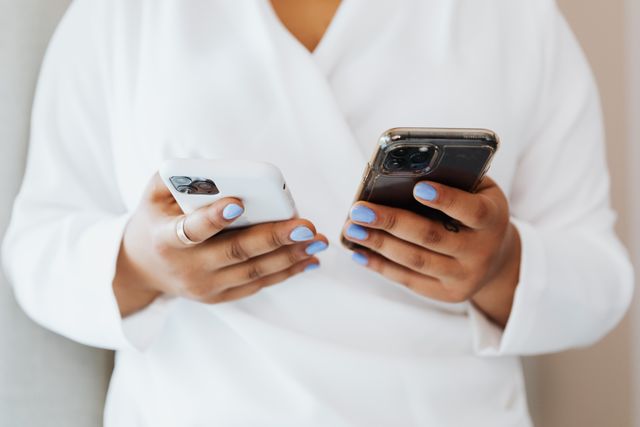
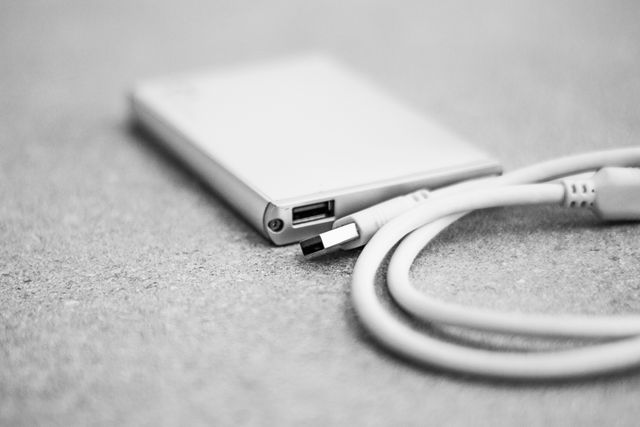
You'll encounter the data transfer option after connecting to Wi-Fi when you set up your new Android device. The cable method is the fastest and most complete approach. Turn on both phones and follow the on-screen instructions to connect them using a USB-C to USB-C cable. You might need an OTG adapter if your old device has a different port. Select the data you want to copy after you connect. This includes apps, photos, videos, contacts, texts, wallpaper and call history.
You can transfer wirelessly if a cable isn't accessible to you. Select "No cable" when prompted and then follow the instructions to connect both devices via Wi-Fi using the setup wizard. The wireless method supports contacts, photos, videos and calendar events. Messages and WhatsApp chats require a cable connection though.
Samsung device owners benefit from Smart Switch, which comes pre-loaded on Galaxy S7 and later models. The app transfers data via Wi-Fi Direct, USB cable or external storage. It preserves your home screen layout and settings. Third-party apps like Send Anywhere offer encrypted transfers with six-digit codes, while Quick Share provides cross-platform file sharing like AirDrop.
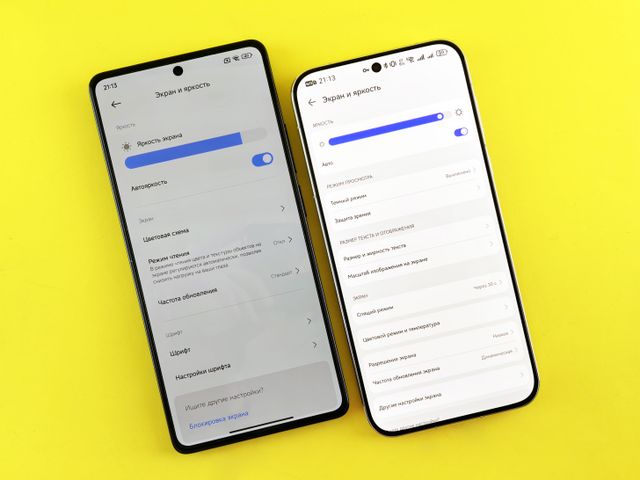
Once the data transfer begins, your new phone displays on-screen instructions to activate your SIM card and sign in to your Google Account. You'll set up biometrics for security next. The transfer continues in the background while you explore your new device. Google Play Store runs and restores your apps and data. This background process can take anywhere from a few minutes to over an hour depending on the amount of content and your internet connection.
Check that all your data has transferred by opening your contacts and photo gallery. Some users report incomplete transfers, especially when you have call history and SMS messages. Call history may be limited to recent entries. Texts include only the most recent conversations. Contacts stored in Google Contacts should sync, but if names don't appear in your messaging app, verify the contact exists in your Contacts application.
Pixel 9, Pixel 9 Pro, and Pixel 9 Pro Fold users can access Android Switch after setup through Settings or Google Play Store if the original transfer missed data. For WhatsApp users, chats and data restore from the cloud after you sign in and open the app if you enabled WhatsApp backups on your old device. Export and import contacts via VCF files if sync issues persist.
Right now, you have everything you need to transfer data from your old Android to your new one without losing a single file. Cable transfers give you the fastest results. Wireless methods provide flexibility when cables aren't available. Samsung users can take advantage of Smart Switch, and third-party apps work well for specific file types. Verify your data after transfer to ensure everything made it across. This is the most important step. The process might seem daunting at first, but Android's built-in tools make it straightforward. Follow these steps with care, and you'll be enjoying your new device with all your precious data intact in no time.
Yes, you can. Pixel 9 series users can access Android Switch through Settings or Google Play Store after initial setup. Alternatively, you can use third-party apps like Samsung Smart Switch, Send Anywhere, or Quick Share to transfer specific files and data even after completing the setup process.
Not everything transfers automatically. Whilst contacts, photos, videos, call history, and apps themselves transfer, you'll need to log back into most apps manually. App-specific data only transfers if the app supports cloud backup or has its own account system. System settings and some preferences transfer, but banking apps and two-factor authentication apps require re-authentication for security reasons.
Using a USB-C cable connection is the fastest method. It provides the most comprehensive transfer and works more quickly than wireless options. Connect both phones with a USB-C to USB-C cable (or use an OTG adapter for older devices) during the initial setup process to transfer apps, photos, videos, contacts, texts, and call history efficiently.
WhatsApp messages and chat history require a cable connection for transfer and won't work with wireless methods. Your chats will restore from the cloud after you sign in and open WhatsApp on your new device, provided you enabled WhatsApp backups on your old phone before transferring.
No, you don't need a SIM card in either phone for data transfer. The transfer process works via USB cable or Wi-Fi connection and doesn't require a carrier signal. You can complete the entire data transfer before activating your new SIM card in the new device.
You May Also Like:


50000+ - Devices Picked

0 Comments